

Magic Containers only supports images built for the linux/amd64 architecture. Build your image with
--platform linux/amd64.Public registries
Public images on Docker Hub and GitHub Container Registry work without any setup.Private registries
To deploy private images, add your registry credentials.1
Navigate to Image Registries
In the bunny.net dashboard, go to Magic Containers and select Image Registries.
2
Add Image Registry
Click Add Image Registry.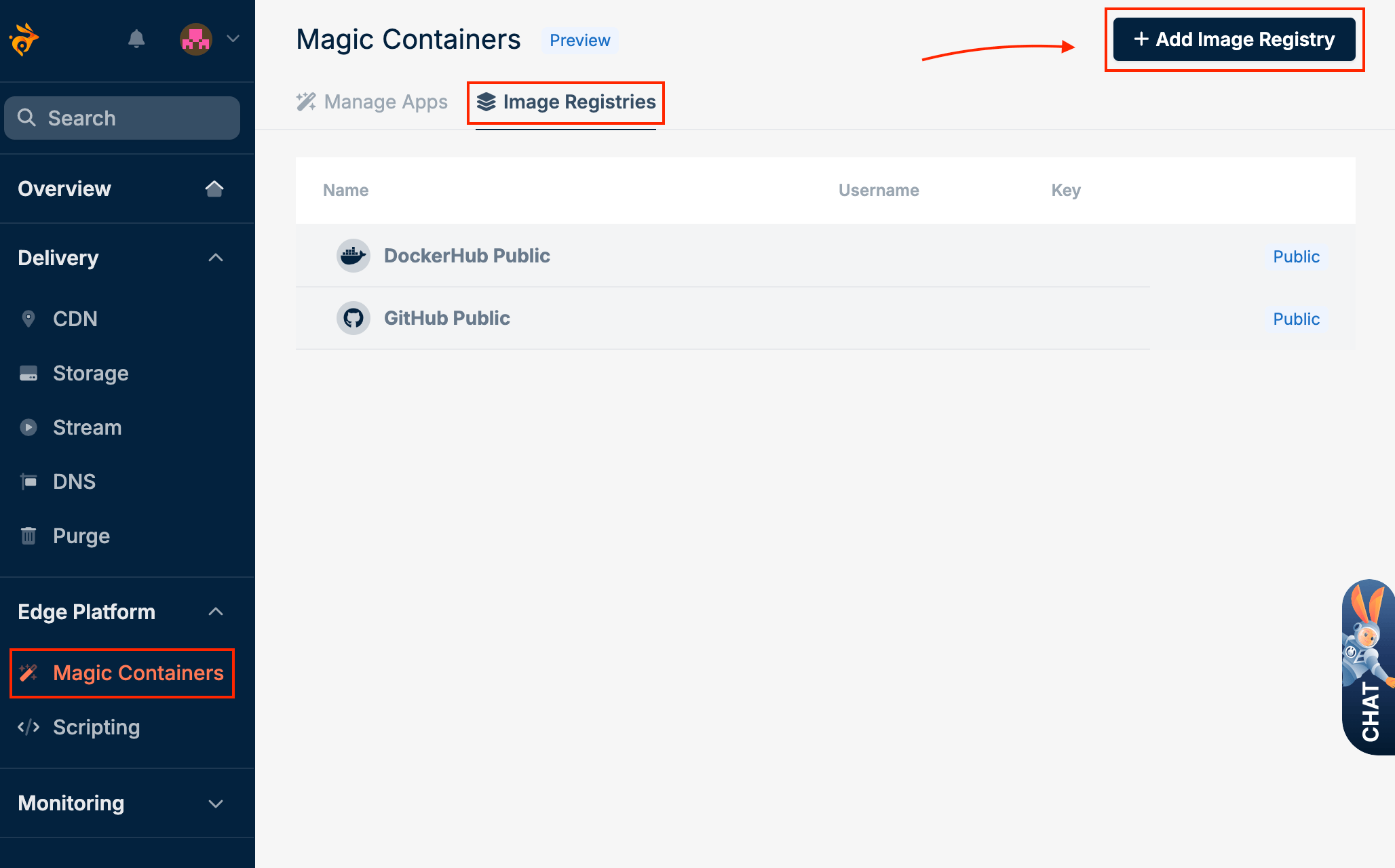
3
Configure registry credentials
Fill in the following fields: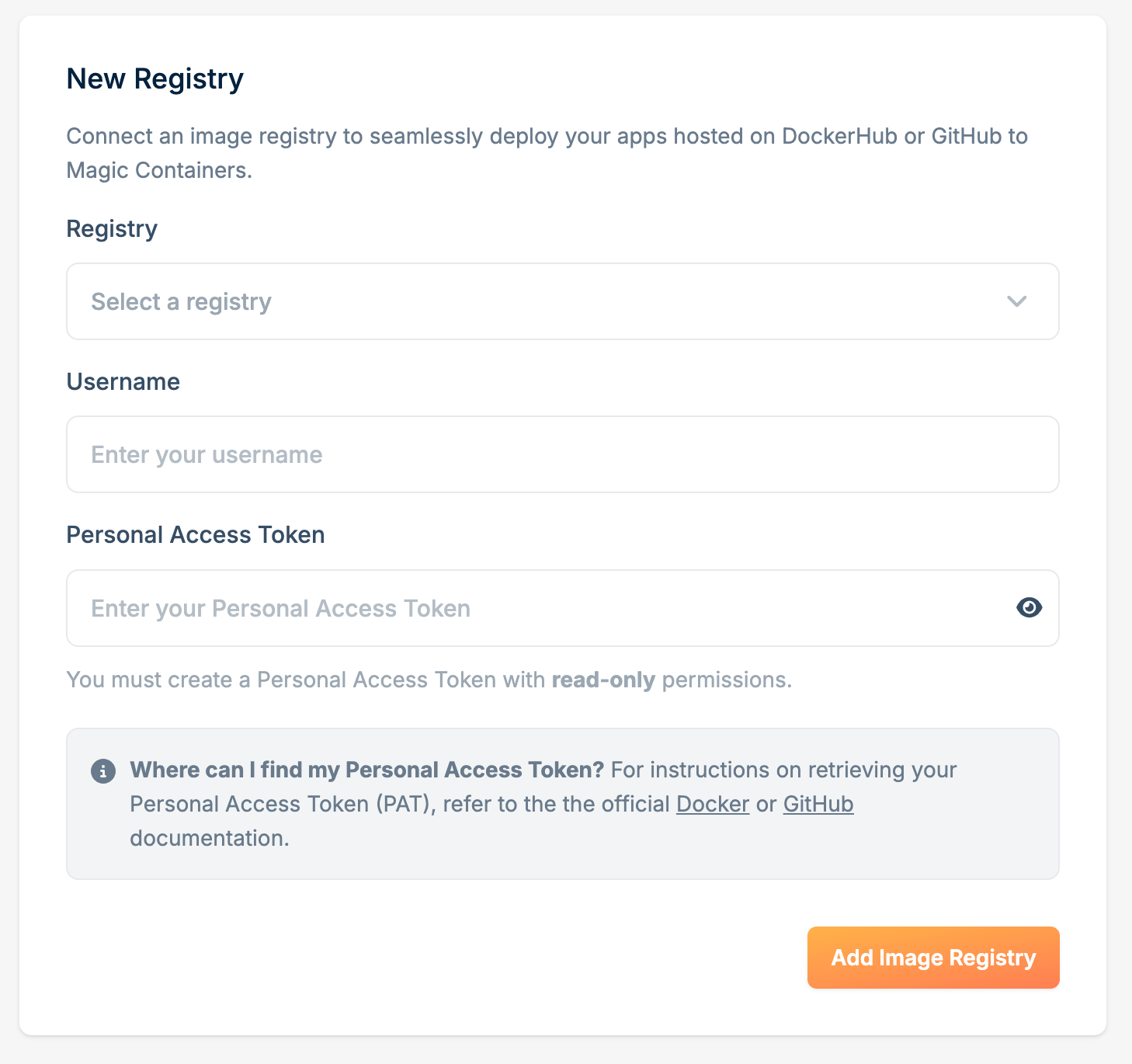
- Registry: DockerHub, GitHub, or OCI-compliant registry.
- Registry host: only for an OCI-compliant registry. Enter the host name, for example
registry.example.com, or the host with a namespace path, as Scaleway and Oracle show it, for examplerg.fr-par.scw.cloud/my-namespace. The registry must be reachable over HTTPS. - Username: your username or organization name.
- Personal Access Token or Password or access token: credentials with read-only (pull) access. On GitHub, use a classic token with the
read:packagesandread:orgscopes.
4
Save
Click Add Image Registry.
OCI-compliant registries
When you deploy from an OCI-compliant registry, you pick the image in one of two ways:- Image reference: paste the full reference, for example
registry.example.com/team/api:1.4.2. Your credentials only need pull access. - Browse registries: Magic Containers lists the repositories in your registry. It reads them from the registry’s catalog endpoint (
/v2/_catalog), which many registries only open to admins.
Harbor
Harbor only lists repositories to system admins and to system robot accounts with the Catalog permission. A robot account that you create inside a project can pull images, but it can’t list them. To browse your Harbor images in Magic Containers, create a system robot account. You need Harbor admin rights.1
Create a system robot account
In Harbor, go to Administration > Robot Accounts and click New Robot Account. Enter a name and an expiration time.
2
Add the catalog permission
Under System Permissions, select Read for Catalog.
3
Add pull access to your projects
Under Project Permissions, select the projects that hold your images, and select Pull for Repository.
4
Copy the credentials
Finish the wizard and copy the secret. Harbor shows it only once.
5
Add the registry in Magic Containers
Add an image registry as in Private registries:
- Registry: OCI-compliant registry.
- Registry host: your Harbor host, for example
harbor.example.com. - Username: the full robot account name that Harbor shows, for example
robot$magic-containers. - Password or access token: the robot account secret.