

Fetch a video from the dashboard
1
Open the upload menu
In your video library, click the arrow next to Upload a Video.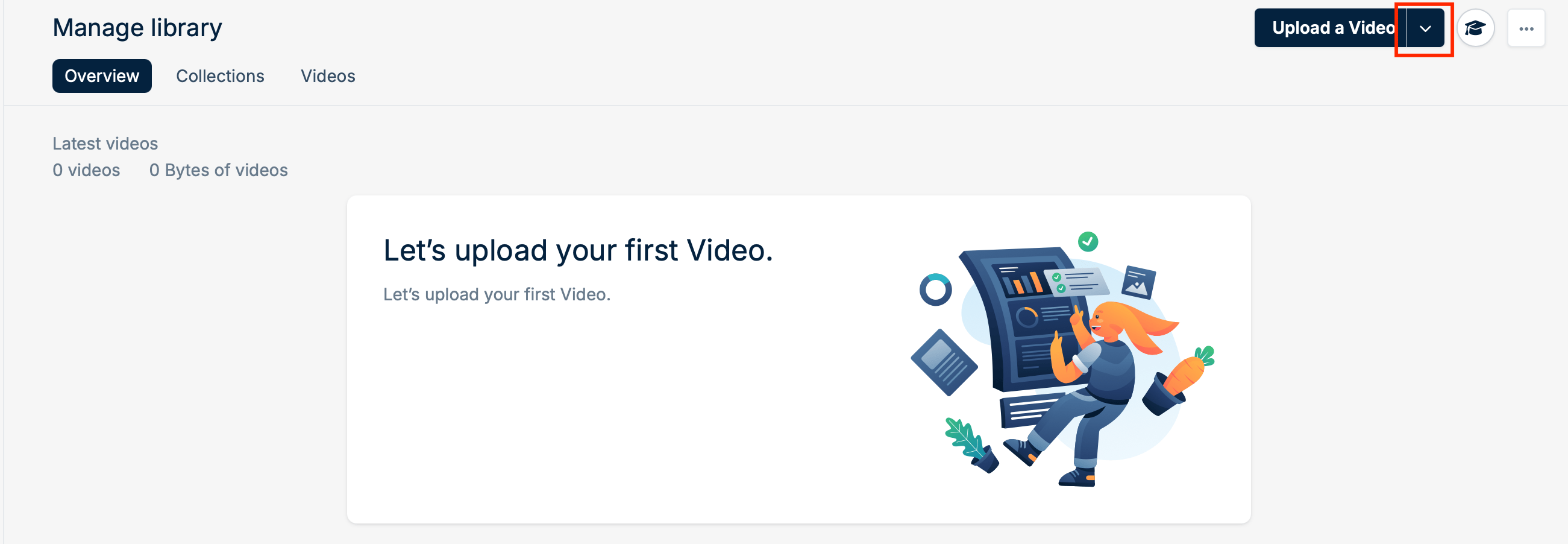
2
Choose Upload Video from URL
Select Upload Video from URL from the dropdown menu.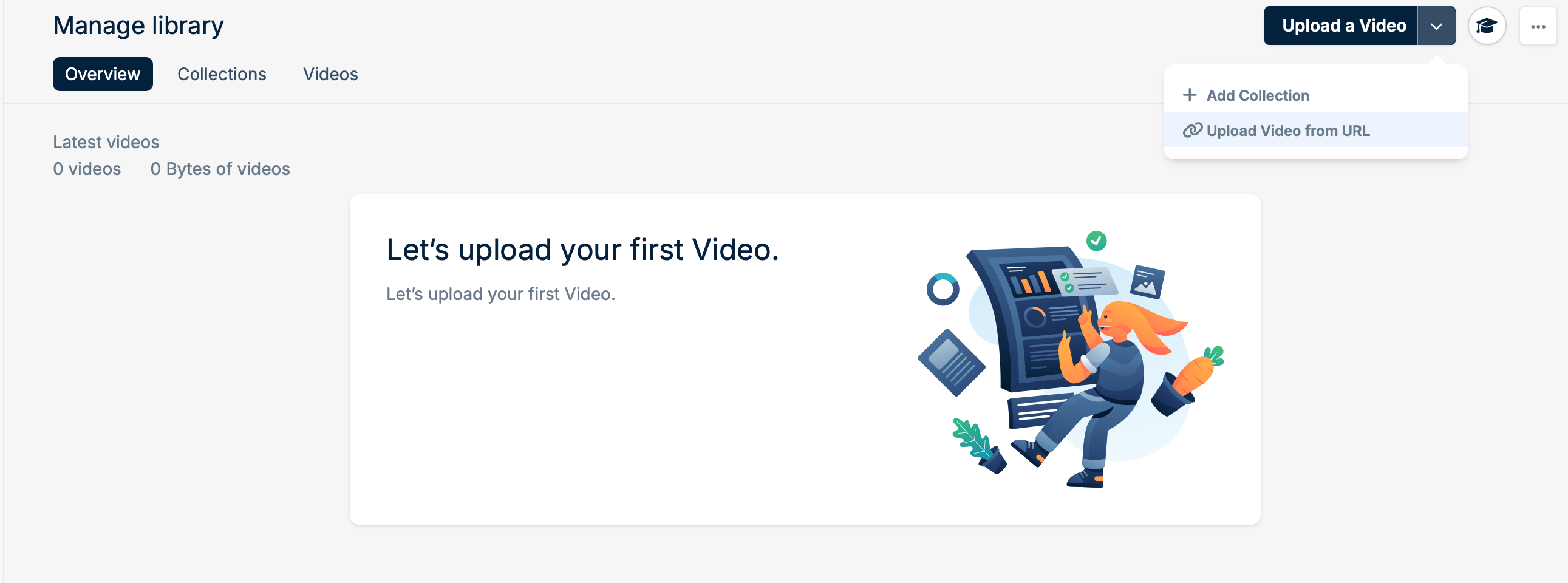
3
Enter the video URL and title
Paste the Video URL, enter a Title, and click Upload Video.If the source needs authentication, expand Advanced to add the HTTP headers sent with the download request.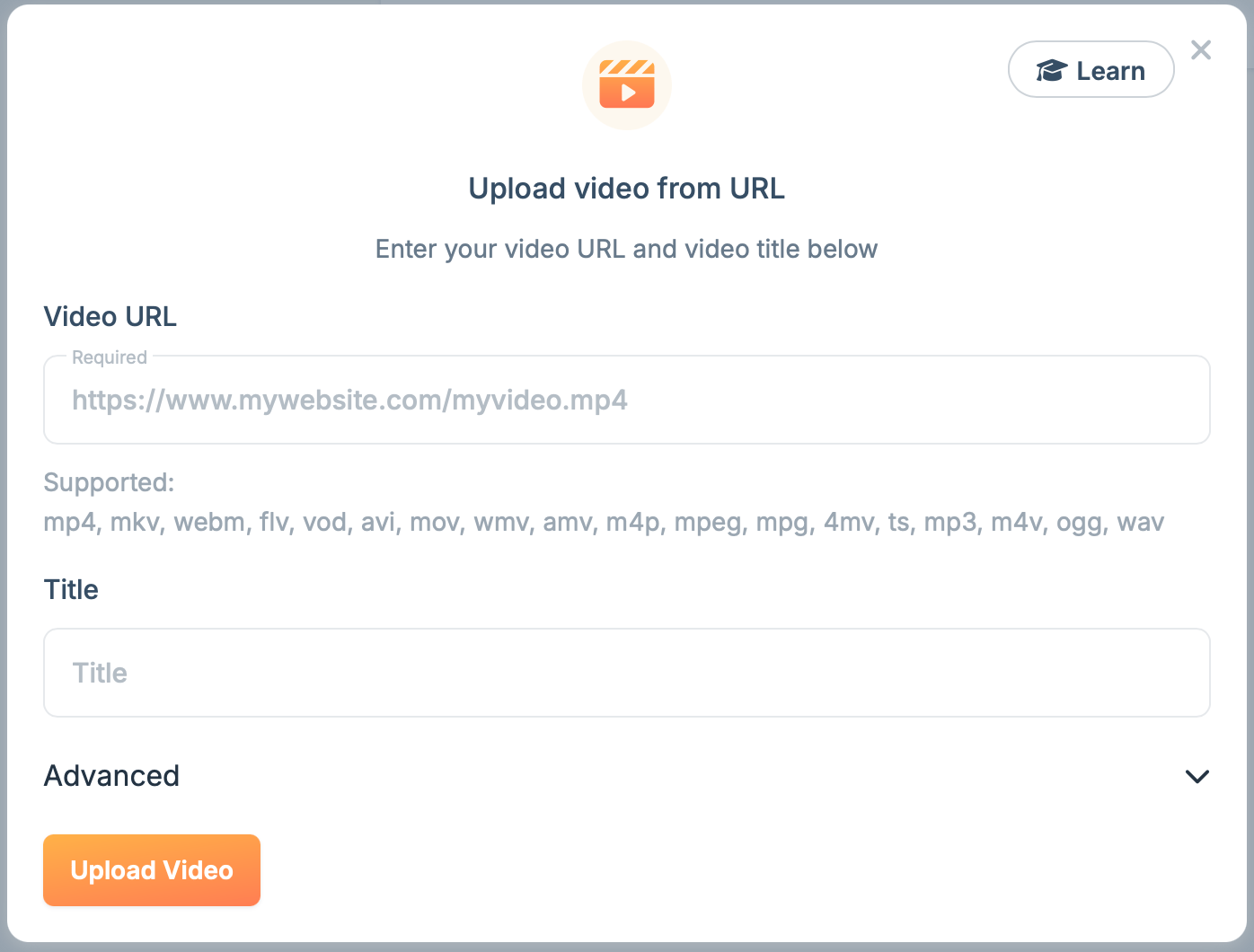
4
Wait for the upload and encoding
The dialog closes and the video starts uploading to your library. Once uploaded, it’s transcoded. This takes longer for larger and longer videos.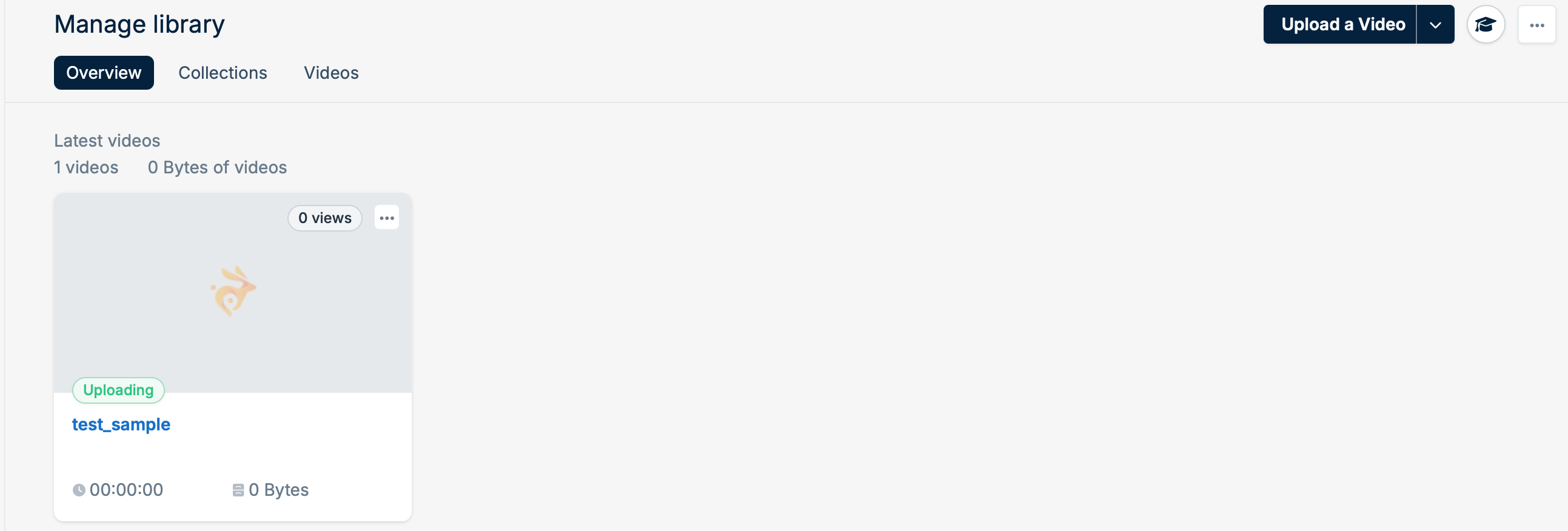
5
Play your video
When encoding finishes, the video is ready for playback.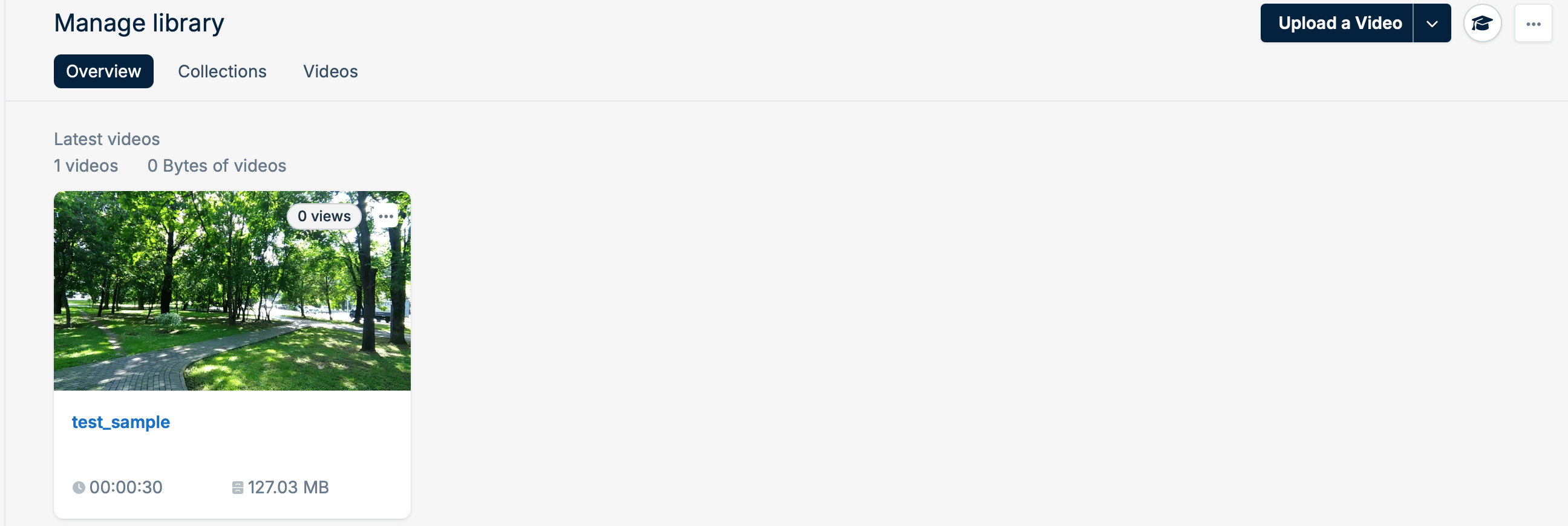
Fetch a video with the CLI
bunny stream videos fetch starts the same fetch:
Troubleshooting
If a fetch fails, check the authentication token in the URL, any header values, and the URL syntax. Requirements vary between platforms.Set any
AuthorizationExpire timestamp to at least 1 hour (3600 seconds) so the upload completes before authorization expires.Upload from Dropbox
Upload from Dropbox
You must own the Dropbox account and the rights to the video.
1
Copy the file link
In Dropbox, open the video file and click the Copy link icon next to Share.
2
Change dl=0 to dl=1
Edit the end of the link so Dropbox serves the file directly:
3
Fetch the video
Paste the link into the Video URL field of the Upload video from URL dialog and click Upload Video.
Upload from Vimeo
Upload from Vimeo
You must own the Vimeo account and the rights to the video.To move a whole Vimeo library, see Migrate from Vimeo.
1
Open the download options
In your Vimeo library, open the video, click the Share dropdown arrow, and select Download.
2
Copy the download link
Right-click the resolution you want and select Copy link address.
3
Fetch the video
Paste the link into the Video URL field of the Upload video from URL dialog and click Upload Video.